BUSINESS WEBSITE GUIDE
What to Check When WooCommerce Checkout Stops Working
Investigate WooCommerce checkout failures with reproducible steps, safe conflict testing, gateway checks and protection for active orders.
By Lookman, StartMyWeb · Updated October 15, 2026
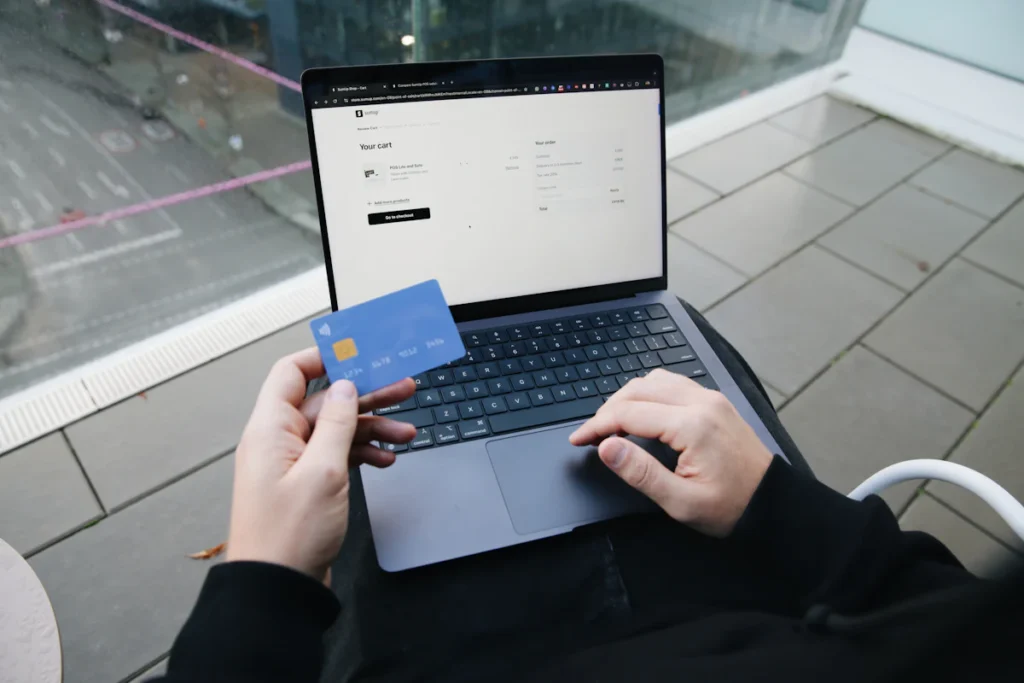
Quick answer: Identify whether checkout fails before the order is created, during payment, or after payment when the store should show confirmation. Check the WooCommerce order and the payment processor’s records before retrying a possibly charged transaction. Then reproduce the fault in a controlled test environment.
“Checkout does not work” can describe an empty cart, missing payment fields, a validation error, a spinning button or a paid order with no confirmation. Each leaves different evidence.
1. Record the failing step
Write down the product, quantity, customer type, destination region, payment method, device, time and exact error message. Use test customer details for reproduction. Compare a simple product with the product that originally failed.
| Observed failure | Evidence to check first |
|---|---|
| Cart empties before checkout | Cart session and caching behaviour |
| No shipping or payment option | Eligibility, destination and gateway configuration |
| Validation error before submission | Required fields, availability and displayed totals |
| Button spins or fields never load | Browser errors, blocked requests and conflicts |
| Payment seems successful; no confirmation | Processor transaction, order notes and payment notifications |
If the cart itself is losing products, start with the empty cart troubleshooting guide. That is an earlier stage than payment processing.
2. Check order and payment records
Look for an order matching the attempt’s time and test customer. Record its status and notes. Separately, check the payment provider’s dashboard for the corresponding transaction or authorization. Keep transaction references private when sharing public screenshots.
WooCommerce’s order troubleshooting documentation explains how order notes, gateway records and payment notifications help diagnose incomplete payments. An order existing in WordPress does not prove that funds were captured, and a pending screen does not prove that no transaction occurred.
If a shopper is unsure whether they were charged, resolve that uncertainty before asking them to pay again. Have the store’s payment administrator follow the processor’s support process. Do not manually mark an order as paid just to remove an error without confirming the transaction.
3. Check basic checkout configuration
Confirm that the intended checkout page is assigned and contains the checkout implementation your store uses. A block checkout and a shortcode checkout can have different extension compatibility requirements. Check the gateway’s documentation for the implementation in use.
Review payment method availability for the store currency and customer location. Check shipping coverage and required address fields using the same destination that failed. Confirm that the product can be purchased in the chosen quantity and that any options or variations are selected.
Use the store’s system status information to gather installed versions and page assignments. Fix a specific configuration error before changing credentials or rebuilding checkout. Never paste secret gateway keys into a public forum or chat transcript.
4. Reproduce without real customer charges
Create a protected staging copy and isolate customer emails, fulfilment and payment actions. Follow the gateway’s documented sandbox instructions. The official payment error guide recommends a separate test environment and explains order notes and gateway logging.
Use one product, one address and one payment method first. Record the last step that worked and the first that failed. When needed, enable the gateway’s diagnostic logging for the test and review WooCommerce → Status → Logs. Turn unnecessary logging back off after the investigation.
If staging succeeds while live fails, compare the environments: gateway mode, hostname, cache rules, installed versions, external callbacks and server responses. The difference is a lead for investigation, not proof that the payment provider is at fault.
5. Isolate conflicts and caching
On staging, follow the WooCommerce conflict-testing process. Retest with the essential store and gateway components, then restore other components one at a time. Repeat the exact failing checkout sequence after each change.
Review the WooCommerce caching guidance. Customer-specific cart, checkout and account behaviour needs appropriate exclusions. Check CDN and host caching as well as WordPress plugin settings; changing one layer may leave another serving old output.
If the browser reports blocked insecure scripts, investigate the mixed content checklist. Keep sanitized error messages and the request time for support.
6. Verify the whole order journey
A working button is only part of the result. Confirm the expected order, processor transaction, confirmation page, stock behaviour and customer notification. Test the affected mobile flow and any essential payment methods after the approved fix reaches production.
Use the staging guide to plan that release. If you need store support, send StartMyWeb the failing step, affected page and sanitized error details, or review the online store service.
About StartMyWeb · Privacy policy
Editorial note: Prepared with AI assistance and checked against the official documentation linked above. Examples are illustrative; test changes on a recoverable copy before applying them to a live business website.
Describe the failure precisely
Record the product, variation, cart state, device, time and non-sensitive error message. Distinguish a page error from a declined payment or provider account restriction. Do not place card details, passwords or unnecessary customer records in a public support inquiry.
Use a test environment without overwriting new orders
Agree the backup, staging setup and approved payment test method. An older staging database must not replace orders created later on production. Scope the release so code and settings can be changed without losing active business data, and define who approves any maintenance window.
Verify the full order path
Check product selection, cart, shipping choices, checkout, confirmation and relevant notifications. Use sandbox payments where they cover the issue; real transactions require an agreed method and authorization. Record provider-side dependencies separately from WordPress fixes and preserve a recovery route.
For a project-specific assessment, review the relevant StartMyWeb service and send your website and requirements. Delivery is remote from Bengaluru, India; scope and timing are agreed in the proposal.